
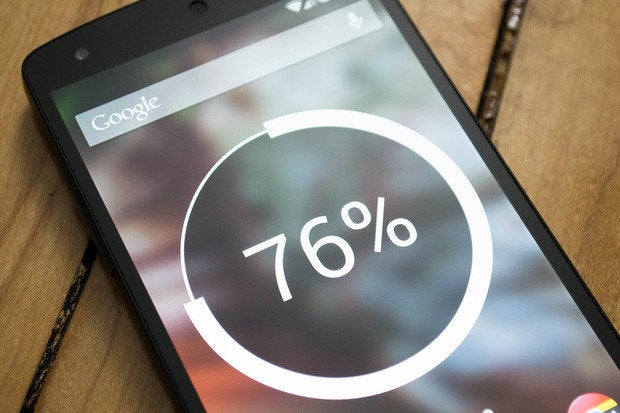
Actually, how to save android battery is very simple, we only do a few steps, so that the effect makes the android battery last longer.
Battery smartphones are not known to be durable in the problem of batteries, even some Android devices has a very weak battery life.
Know more about android battery First, let's discuss the problem of battery materials, most smartphones using lithium-ion batteries or lithium-polymer batteries.
The two ingredients do not have 'memory', which means you can fill the cage at any time any battery condition, not only waiting for the battery to 0%.
Here are some ways to save the battery of an Android device:
1. Disable Animation
Turn off all animations that make the battery wasteful. We believe that this one thing we often don't pay attention to, do you realize that every action on an Android device has animations too? Now in fact this animation makes the Android battery run out quickly. So we better just speed up the animation on our respective androids.
To make this arrangement, we must access the "secret menu" that is on the Android device.
Below are the steps:
1. Open settings.
2. Swipe down and select "About Phone ".
3. Click "Information Software"
4. Swipe down and press "Number formed" or "Build Number" 7 times.
5. "Now that you are a Developer", you will get a message like that.
6. Now go back to after and you will see the new settings: Developer options.
After the secret menu is active, the following guidelines for reducing or removing animations on the device:
1. Open the Developer Options.
2. Swipe down until and select the window animation scale and select 0.5.
3. Select "Transition animation scale" and choose 0.5.
4. Select "duration of animator" and choose 0.5.
Changes will take effect and no need to restart the mobile.
Please feel the difference. reduced animation helps save battery life so it lasts longer.
2. Disable the Google OK feature
When the smartphone display is in a sleep state, this does not mean the Android device's battery is not reduced. One that makes an Android battery run out quickly is the Google OK feature.
Especially if you allow orders "Ok Google "to activate your Android device. Of course the battery will run out quickly. The choice is to deactivate the ok google feature so that applications that run in the background are not too many.
How to save Android battery by turning off the "Ok Google" feature:
1. Open google app.
2. Swipe left and select settings.
3. Select voice> "Ok Google".
4. Always turn it off.
3. Activate Battery Saver Mode
Although limiting the performance of an Android smartphone, use the battery saving mode Be a smart choice for those of us who want to save on Android batteries.
We can automatically set the battery saving mode after the battery shows only a few percent. I myself always activate the battery saving mode, so that the Android battery lasts longer.
How to activate the battery saving mode in Asus Zenfone 6:
1. Enter settings> Power Management.
2. Power Saver.
3. Activate smart saving.
4. Select Ultra-saving mode, optimized mode, or customized mode.
5. Finish
4. Don't Too Many Widgets
This is one of the things I personally don't like, which is "lots of widgets".
You don't need to add many widgets to your Android device, especially widgets such as weather, Gmail, bookmarks, task managers, and more.
Because the more widgets, the faster the Android battery runs out.
Because the widget continues to synchronize and keep being updated, such as weather, gmail, and social media. In addition, not too many widgets also make our Android display more simple and it is easy to navigate.
5. Deactivate automatic synchronization
synchronization for accounts that are not really needed.
Without realizing it, there are factors that cause the Android battery to run out quickly.
That is when we use many applications, especially Google apps.
Google apps will do some synchronization behind it, and I don't think all of you need it. For that, we better just turn off automatic synchronization for applications that are not needed.
How to?
1. Enter settings> account.
2. Select the application to see what applications have been synchronized (one of which is the biggest is Google).
3. Under Google, you will find a long list of applications.
4. Disable applications that you don't use.
This method can be done almost for all applications that require you to log into your account. But not all applications allow it to be disabled.
6. Always update the application

There must be many applications that you install through the PlayStore. Always try to update the installed application, why? because developers continue to fix bugs and optimize their applications.
An application that is outdated, can be said to be bad, and can be a wasteful Android battery factor. You do not need to bother updating the application one by one because the " automatic update " feature is provided in Playstore.
How to set automatic updates:
Open the Google Play Store.
Go to Settings> Update applications automatically.
We recommend choosing " Update applications automatically only via Wi-Fi ".
An application that is outdated, can be said to be bad, and can be a wasteful Android battery factor. You do not need to bother updating the application one by one because the " automatic update " feature is provided in Playstore.
How to set automatic updates:
Open the Google Play Store.
Go to Settings> Update applications automatically.
We recommend choosing " Update applications automatically only via Wi-Fi ".
7. Always use dark themes
We talked about how batteries can be optimized using black wallpaper. Logically, that also applies to applications.
Again, if your phone is AMOLED, you should always use a dark theme. OEMs such as LG and Samsung began to integrate with several types of themes on their various smartphones. Some of these themes are free, some are paid.
8. Install Applications to Save Battery
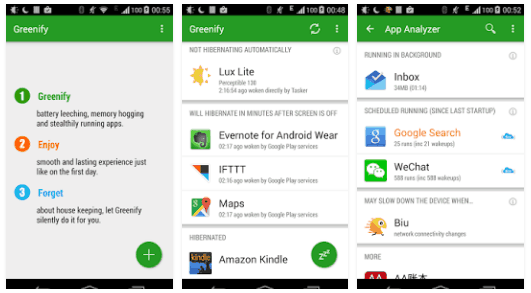
We think there are many applications that can be used to maximize battery performance, but here we only recommend one application, " Greenify ".
This application can identify and hibernate applications when not in use. This application does not "stop" the performance of other applications, but can continue the application when reopened.
At least Greenify can help detect problems with applications, so you can deactivate and even remove apps that drain the battery.
This application can identify and hibernate applications when not in use. This application does not "stop" the performance of other applications, but can continue the application when reopened.
At least Greenify can help detect problems with applications, so you can deactivate and even remove apps that drain the battery.
9. Don't activate Tethering
Tethering or portable Wi-Fi hotspot is very draining the battery! I have proven it myself because almost every day I do it. So how to save Android battery by not turning on tethering .
Maybe on your campus or school, many of your friends are asking for tethering, but it's best if the Android battery isn't too much so you shouldn't need it.
Tethering or portable Wi-Fi hotspot is very draining the battery! I have proven it myself because almost every day I do it. So how to save Android battery by not turning on tethering .
Maybe on your campus or school, many of your friends are asking for tethering, but it's best if the Android battery isn't too much so you shouldn't need it.
10. Turn off the GPS

I personally turn off the GPS more often than activate it, the reason is when the GPS is active then automatically wherever we are, our location will continue to be updated, this will certainly make the Android battery not last.
My advice, activate the GPS when you really need it. Like when going to use Google Maps, or when you want to tag a location when you want to send a story or feed to Instagram
How to save this android battery can be used for all cellphone brands like, Samsung, Oppo, Lenovo, Asus, Huawei, and other brands. So this is an effective way to make an Android battery last longer .
My advice, activate the GPS when you really need it. Like when going to use Google Maps, or when you want to tag a location when you want to send a story or feed to Instagram
How to save this android battery can be used for all cellphone brands like, Samsung, Oppo, Lenovo, Asus, Huawei, and other brands. So this is an effective way to make an Android battery last longer .


Post a Comment
Post a Comment